HexaCore is a modern digital menu system that transforms how restaurants operate. It eliminates paper menus, streamlines ordering, and provides real-time insights into your business. Customers scan a QR code at their table, browse your menu on their phone, and place orders directly — no app download required!
Customers: View full menu with photos, order at their pace, pay seamlessly
2. Getting Started
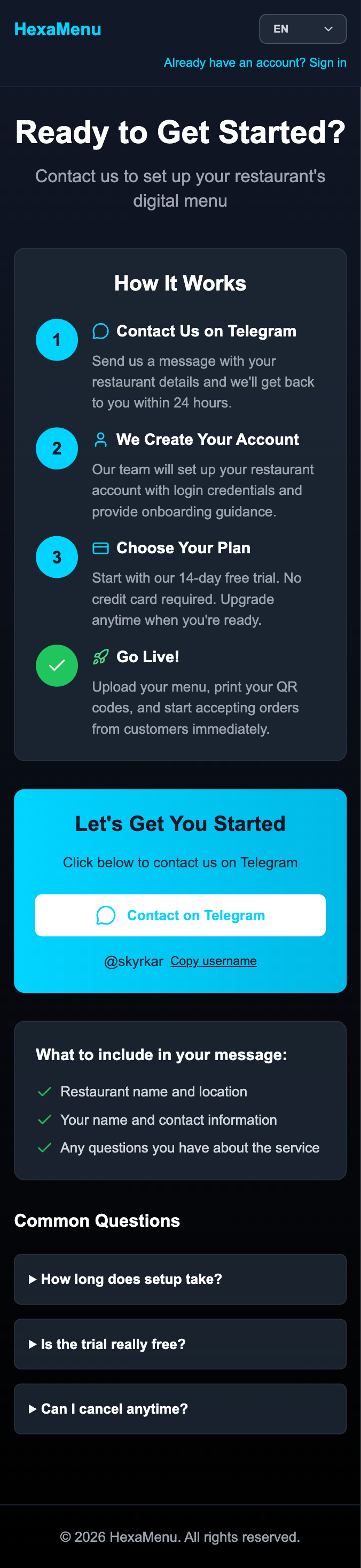
Get Started page – Contact process
How It Works
Contact us on Telegram — Send a message with your restaurant details
We create your account — Our team sets up your restaurant with login credentials
Choose your plan — Start with a 14-day free trial, then select a subscription
Go live! — Upload your menu, print QR codes, and start accepting orders
You'll receive your login credentials via Telegram within 24 hours. Keep these credentials secure as they provide full access to your restaurant's system.
3. For Restaurant Owners
As a restaurant owner, you have complete control over your digital menu system.
3.1 Dashboard Overview
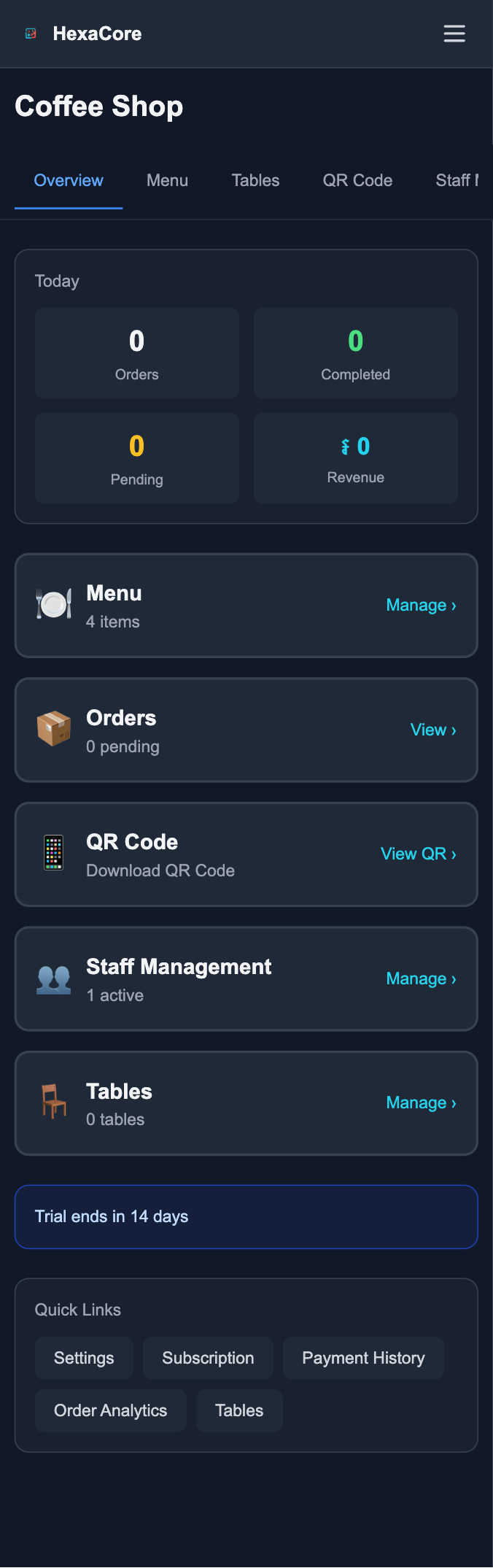
Owner Dashboard – Main overview
Your main dashboard is the control center for monitoring your restaurant's performance.
Today's Statistics: Real-time order count, completed orders, pending orders, and revenue
Menu Quick Access: Jump directly to menu management
Orders Section: View and manage pending orders
QR Code Access: Download your restaurant's QR code for printing
Staff Management: See active staff and manage team members
Tables: View and manage your table setup
Quick Links: Settings, Subscription, Payment History, Order Analytics
Trial Period: You'll see 'Trial ends in X days'. Subscribe before the trial ends to continue without interruption.
3.2 Menu Management
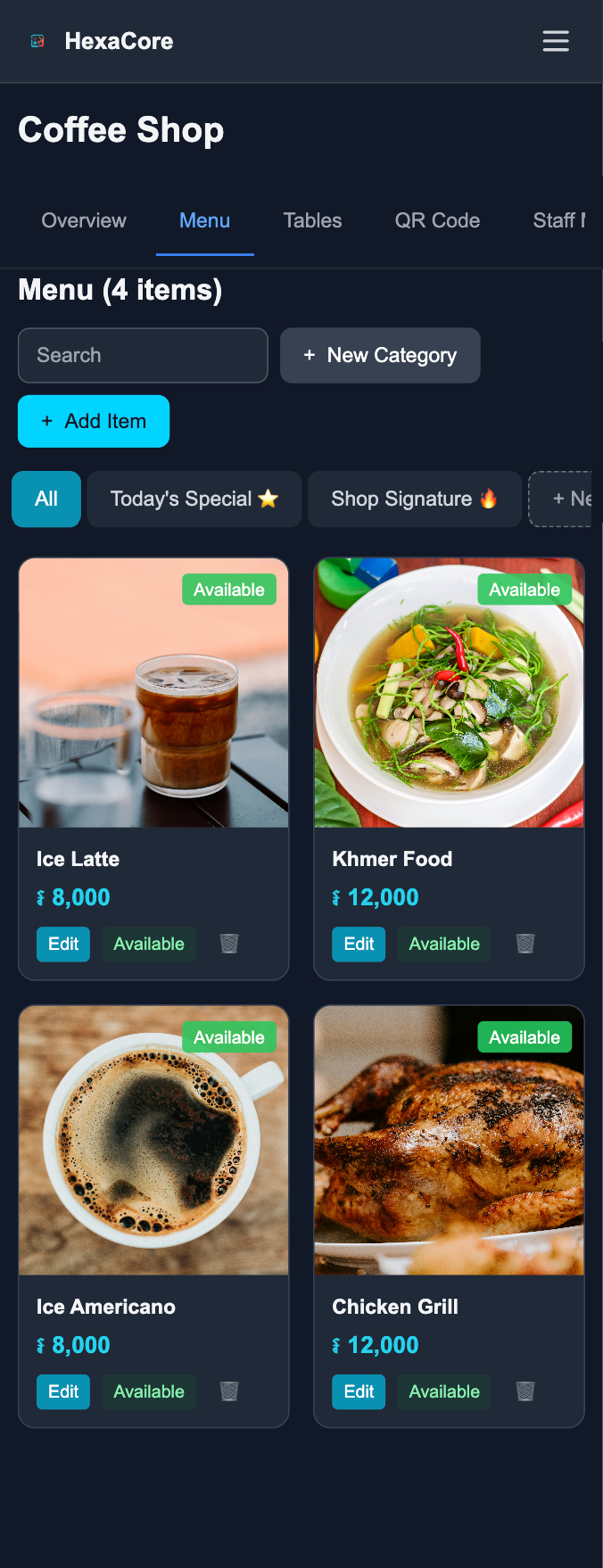
Menu Management Interface
Creating Categories
Click '+ New Category'
Enter a category name (e.g. 'Today's Special', 'Beverages', 'Main Dishes')
Add emojis to make categories appealing
Adding Menu Items
Click '+ Add Item'
Upload a photo (good photos increase orders!)
Enter item name, set price, select category
Set availability (Available / Out of Stock)
Managing Items
Click 'Edit' to change price, photo, or details
Toggle availability or use trash icon to delete
Use search bar and category tabs to filter
Update 'Today's Special' daily with seasonal items or chef recommendations to keep the menu fresh.
3.3 Table Management & QR Codes
Table Management Screen
Each table gets a unique QR code. When customers scan it, they see your menu and orders are linked to that table.
Enter table names (e.g. 'A9', 'G', 'VIP-1') and click 'Add table'
Click 'QR preview' to see the code, 'Copy link' for the direct URL
Use the toggle to enable/disable tables
Table QR Code Preview
Main Restaurant QR: Use for takeaway or general menu display. Download, print on durable material (laminated paper, acrylic stands), and place on each table with text like 'Scan to Order'.
Main Restaurant QR Code
3.4 Staff Management
Staff Management Interface
Click '+ Create Staff', enter email, select position (Waiter, Manager, Kitchen Staff)
System creates credentials — share securely with the staff member
View, edit, send notifications, or set status to inactive
Only share credentials via secure channels. Each staff member should have their own account.
3.5 Settings & Configuration
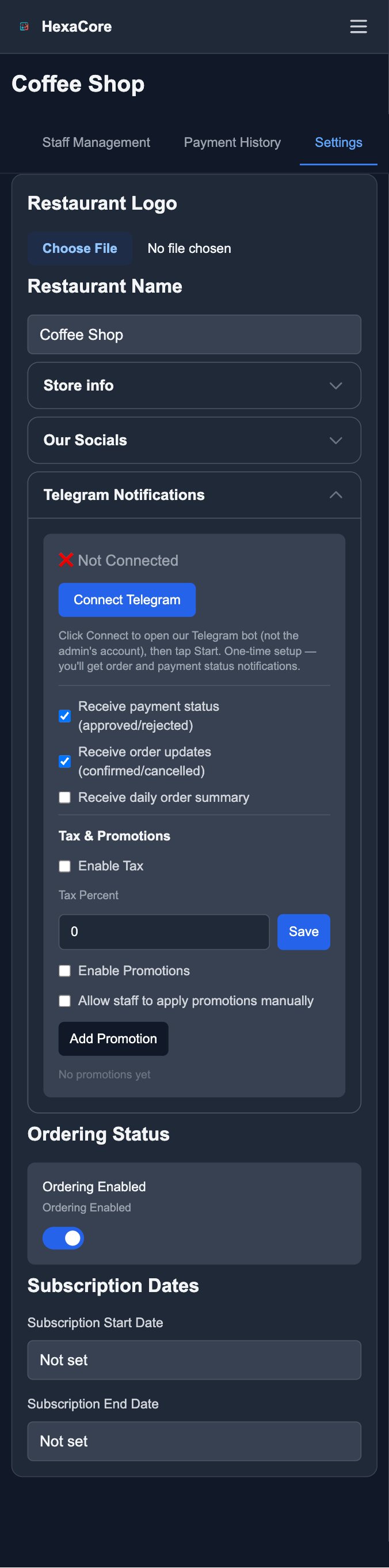
Settings Page
Restaurant Logo & Name
Store Info: Address, phone, opening hours
Our Socials: Facebook, Instagram
Telegram Notifications: Connect for instant order and payment alerts
Tax & Promotions
Ordering Status: Turn on/off (e.g. during closed hours)
Payment Process: Select plan and duration (1–12 months), choose payment method, scan QR, make payment, take screenshot, upload, and send for confirmation. Admin approval is usually within 1 business day.
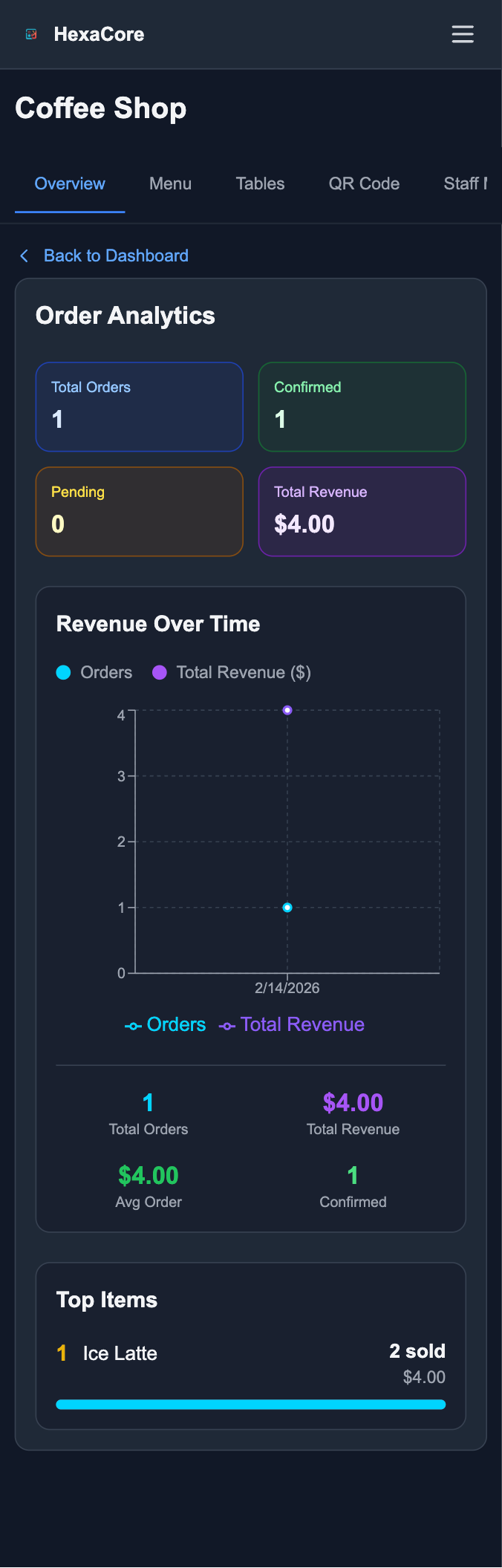
3.7 Analytics & Reports
Order Analytics Dashboard
Total orders, confirmed, pending, revenue
Revenue over time, average order value
Top items — use to ensure best-sellers are in stock
Payment History
Access 'Payment History' from the Quick Links section to review subscription payments.
4. For Staff Members
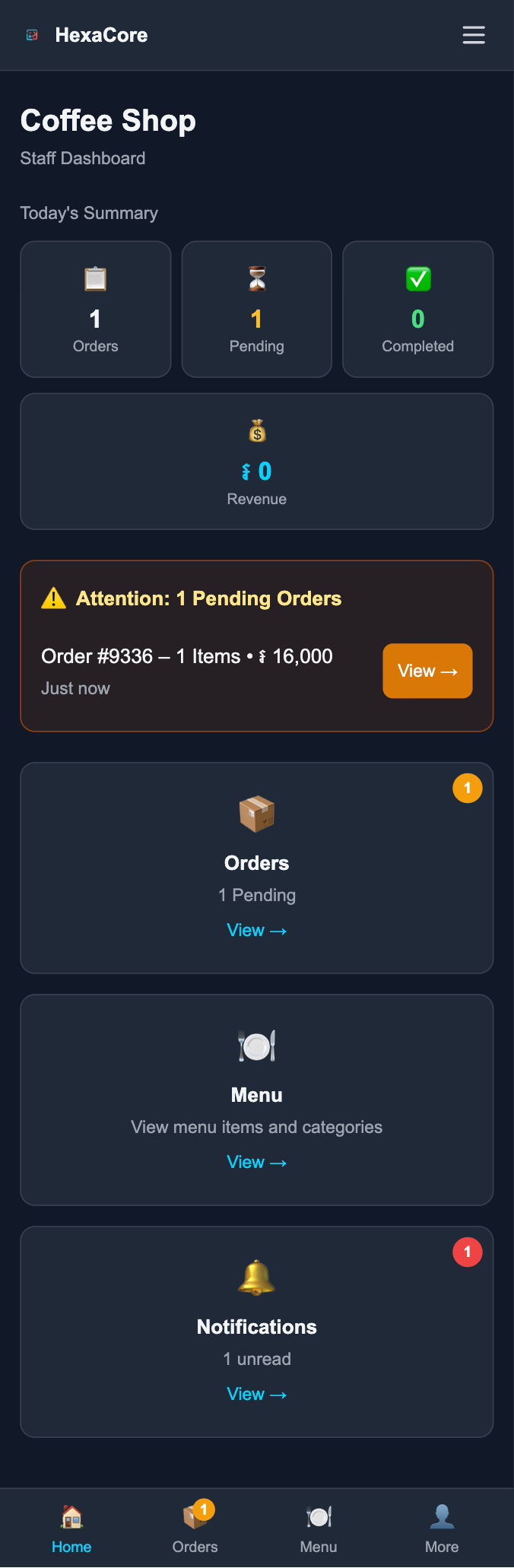
4.1 Staff Dashboard
Staff Dashboard – Mobile View
Simplified dashboard focused on managing orders. Today's summary, pending alerts, orders, menu, and notifications. Optimized for mobile.
4.2 Managing Orders
Order Detail Screen
New orders appear with alert — click 'View' for details
Edit Order — Modify quantities
Confirm Order — Accept and proceed
Cancel Order — Reject if unable to fulfill
Orders List View
Filter by table or status (Pending, Confirmed).
4.3 Daily Operations
Check dashboard at start of shift
Confirm or cancel within 2–3 minutes
Communicate clearly if cancelling (e.g. out of stock)
Enable phone notifications
Report low-stock items to manager
Resolve all pending orders before logging out
From 'More': profile, QR codes, notifications, log out.
5. For Customers
Ordering is simple — no app download. Scan, browse, and order from your phone's browser.
Customer Menu View
5.1 Scanning the QR Code
Look for QR code on table
Open phone camera, point at code
Tap the notification to open menu
5.2 Browsing the Menu
Menu Features – Search, categories, prices
Search bar, category tabs, photos, prices
Tap '+' to add items to cart
Settings icon: change language and currency
Language and Currency Settings
5.3 Placing Your Order
Tap '+' to add items — cart indicator shows count and total
Tap 'View Cart / Checkout' to review
Use '-' and '+' to adjust, trash to remove
Tap 'Place Order' when ready
Your Order / Cart View
5.4 After Placing Your Order
'Order Placed!' confirmation
Staff reviews and confirms (usually 2–3 minutes)
Status: Pending → Confirmed (preparing) or Cancelled
Order Placed Confirmation
Make sure you're at the correct table when scanning so your order is delivered to the right place.
6. Support & Troubleshooting
QR Code Won't Scan
Ensure good lighting, clean surface, try a different camera app, or type the menu URL manually.
Menu Not Loading
Check internet, refresh page, or close and reopen the browser.
Can't Add Items to Cart
Item may be out of stock — check availability or try another item.
Order Not Going Through
Verify internet, check if ordering is enabled (restaurant might be closed), try again.
Payment Issues
Ensure screenshot is clear, uploaded to correct order, wait for admin approval notification.